


A lot of offices have the same problem hiding in plain sight. The back corner of a private office collects boxes, a spare chair, or old equipment. The corner inside a cubicle turns into a landing zone for binders and tangled cords. In shared work areas, those angled footprints often stay underused because standard desks don’t fit the geometry well and built-in worksurfaces don’t adapt to different users.
That’s where a sit stand desk corner setup starts to make sense as a planning move, not just a furniture purchase. It uses space that already exists, and it gives employees the ability to change working posture without leaving their station. For facilities teams, that combination matters because square footage and ergonomic flexibility usually compete for the same budget. A corner sit-stand desk can solve both at once when it’s selected and installed properly.
In professional environments, the desk can’t be viewed in isolation. It has to work with aisles, power access, cubicle panels, privacy requirements, monitor arms, storage, and future churn in headcount. That’s why this article approaches the topic the same way Cubicle By Design approaches office planning. As part of a broader workplace system.
Good office corners don’t happen by accident. They’re designed. If you’re also reviewing broader ideas around designing a contemporary desk office, it helps to think of the corner station as one of the hardest working zones in the plan, especially in hybrid offices where one workstation may serve different people across the week.
Planning an Office Upgrade? Design Your Ideal Workspace in 3D.
From space-saving collaborative benches to high-privacy acoustic cubicles, you don’t have to guess how your new furniture will fit. Skip the generic floor plans and visualize your exact layout instantly with our interactive tool.
Sit Stand Desk Corner The Ultimate Guide for Offices
Introduction Reclaiming Your Office Corners
The most common mistake with corner workstations is treating them like a compromise. They’re not. In a well-planned office, the corner is often the place where a larger work surface, better zoning, and cleaner circulation can come together.
A corner sit-stand desk earns its footprint when the user needs more than a basic rectangle can provide. Two monitors, a laptop dock, paperwork, and a phone setup can quickly overrun a standard desk. The L-shape gives those tools dedicated space, while the height-adjustable frame lets the entire surface move with the user instead of forcing the user to adapt to the furniture.
One reason this format became more practical in mainstream offices is the maturation of ergonomic standards and commercial product design. Modern corner models such as the UPLIFT V3 curved corner standing desk advertise a 22.6″ to 48.7″ height range designed to fit 95% of users under ANSI/BIFMA G1-2013 guidance, which is why these desks can support both seated and standing postures in real workplaces, not just niche showrooms (UPLIFT curved corner standing desk specs).
Where corner desks work best
Some office settings benefit more than others:
- Private offices: The corner allows a user to separate computer work from review space or guest interaction.
- Manager pods: The return side can hold a laptop or secondary screen without crowding the primary work area.
- Shared touchdown spaces: One larger adjustable surface often handles mixed tasks better than several small fixed ones.
- Technical or admin stations: Extra surface area helps when workers juggle screens, paperwork, and peripherals.
Practical rule: If the corner desk only adds surface but doesn’t improve how the person works, it’s oversized. If it creates clear task zones and supports posture changes, it’s doing its job.
What facilities managers should watch early
The desk itself is only half the decision. The other half is integration.
That means asking whether the desk can rise without hitting panels, whether the user has room to stand behind the chair line, and whether power can move cleanly with the frame. In modular offices, those questions matter more than finish color or desktop shape.
Measure Twice, Buy Once Planning Your Corner Footprint
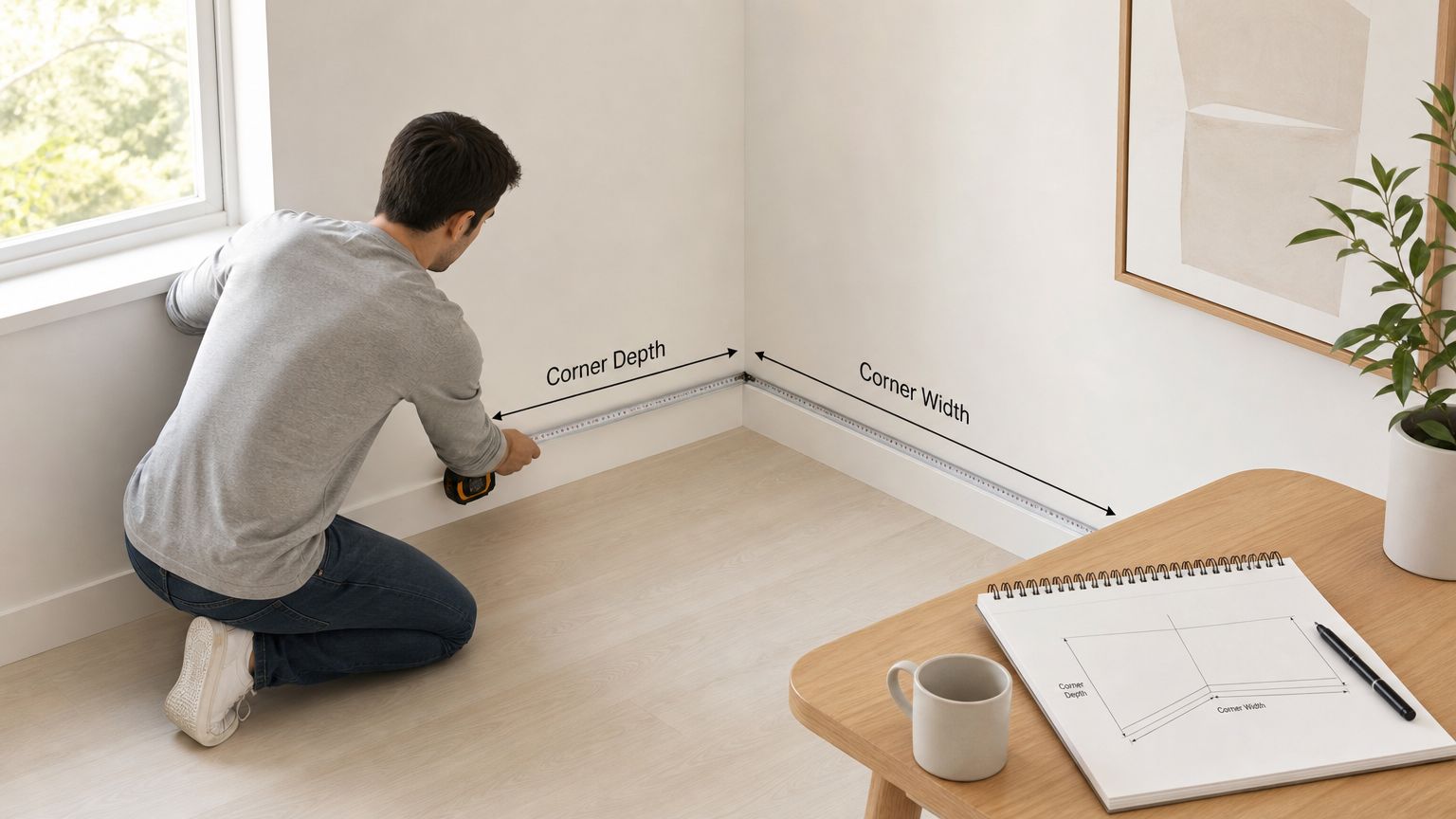
A sit stand desk corner project usually succeeds or fails before the order is placed. The site measurement needs to be more detailed than a simple wall-to-wall number. Corners are rarely perfect. Baseboards push furniture off the wall. Window trim, columns, outlets, and panel caps steal usable depth.
Start with the true usable corner
Measure both walls independently. Then measure the projection of any obstruction into the footprint. In older buildings, I also recommend checking the corner with a square or at least confirming that the walls don’t flare enough to create a gap that affects the desktop fit.
Use this short field checklist:
- Wall length on both sides: Don’t assume the two runs are equal.
- Baseboard depth: This changes how close the frame can sit to the wall.
- Window sill or ledge height: The desk may fit while seated and collide when raised.
- Nearby storage or lateral files: Drawers and cabinet doors need their own clearance.
- Standing zone behind the chair: The user needs space to step back and work upright.
A practical benchmark helps ground the planning. One common L-shaped model provides 38.4 x 38.4 in of tabletop space, a 28.3 to 47.2 in height range, a 176 lb load capacity, three memory presets, and an anti-collision stop, which makes it a useful reference point when checking footprint, user height, and total carried equipment (Mount-It corner sit-stand desk listing).
Measure the moving desk, not just the static desk
Facilities teams often measure the desk at rest and forget the raised condition. That’s where collisions show up.
When the desk rises, monitor arms can extend upward and backward. Cable loops lengthen. Privacy panels, shelves, and overhead storage may become interference points. The safe move is to model the desk through its full travel path before purchase.
Don’t approve the footprint until you’ve checked seated height, standing height, and cable travel. Most installation problems show up in the transition, not in the parked position.
Match capacity to the real load
Payload assumptions are often too optimistic. Two monitors, two arms, a dock, laptop, keyboard tray, power strip, and personal accessories add up quickly. If the planned setup includes heavy monitor arrays or dense equipment, count everything before selecting the frame.
A quick planning table helps:
| Item to verify | Why it matters |
|---|---|
| Desktop size | Determines whether the user can create distinct task zones |
| Lift range | Determines whether seated and standing postures can both be set correctly |
| Load capacity | Determines whether the desk can carry monitors, arms, and accessories safely |
| Memory presets | Reduces time lost to repeated manual readjustment |
| Anti-collision | Helps prevent damage when the desk meets an obstacle during movement |
For more complex layouts, especially where the corner desk has to fit into a broader office scheme, the Cubicle By Design L-shaped executive desk options are worth reviewing alongside your measured plan so you can compare desk geometry against circulation and storage needs.
Choosing Your Lift System Electric, Converter, or Manual
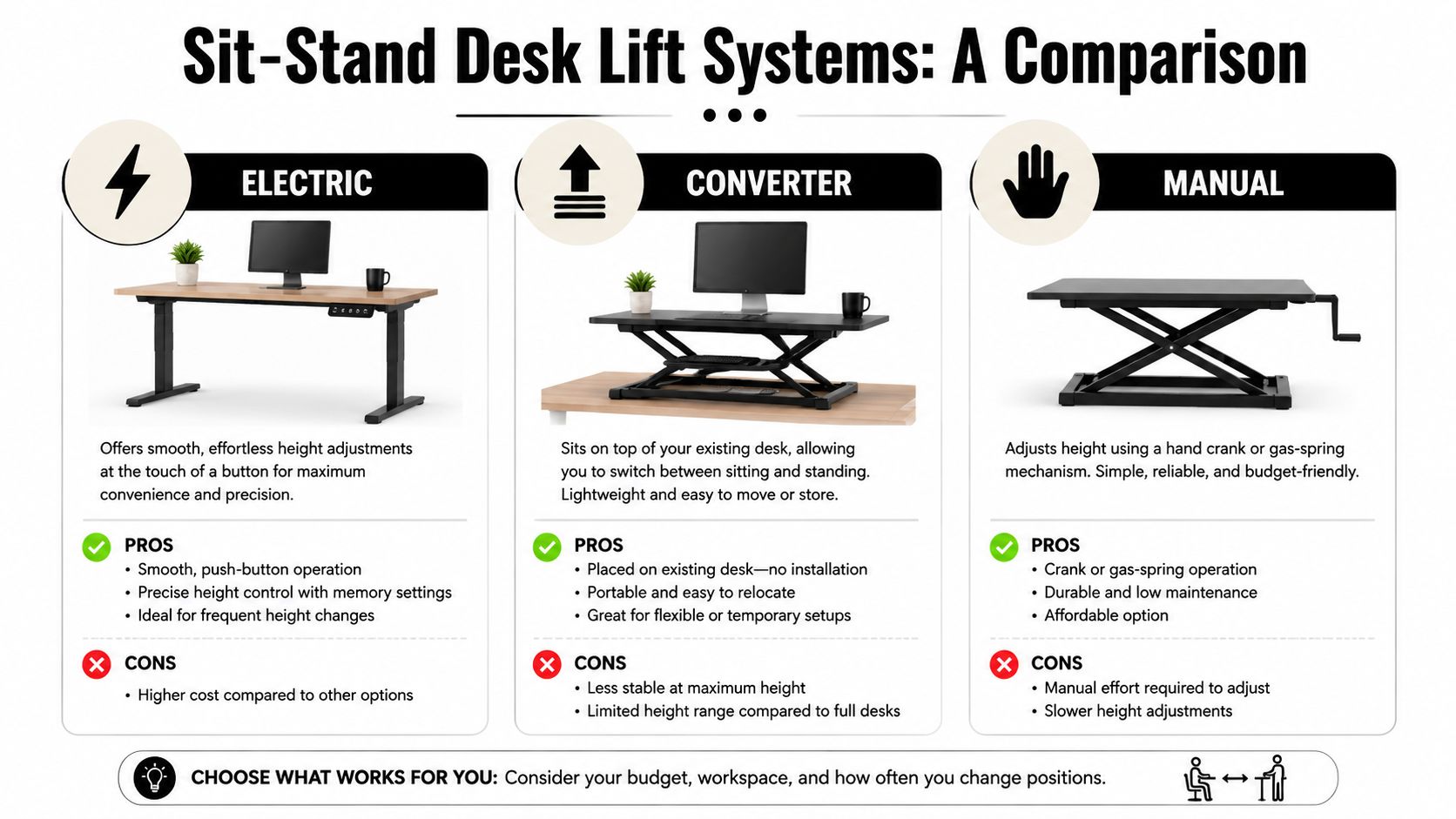
Not every sit stand desk corner setup needs the same mechanism. The right choice depends on how permanent the workstation is, how much equipment it carries, and how often the user will change position during the day.
Full electric corner desks
For most professional offices, electric is the default answer. Push-button adjustment matters because if the desk is cumbersome to raise, people stop using the feature. That’s especially true in shared environments and manager stations where the desk supports different tasks across the day.
Electric corner frames also make more sense as the workstation grows. Larger tops and more equipment place more demand on the structure, synchronization, and lifting system. The category has broadened enough that buyers can now choose between premium commercial systems and more accessible builds. One documented DIY electric corner desk project reported roughly $500 total spend, with a three-motor L-shaped kit costing $500 by itself in one scenario, or less than $400, including about $389 with shipping in one cited example, depending on sourcing (DIY electric corner standing desk example).
That pricing spread tells you something important. Electric corner desks are no longer reserved for flagship offices only. They now fit a wider range of workplace budgets.
Desktop converters for existing corner desks
A converter works when the business already owns fixed L-shaped desks and replacement isn’t practical yet. It’s a reasonable bridge solution in leased space, short-term expansions, or departments with mixed furniture standards.
The trade-off is straightforward. A converter raises only the active work zone, not the full corner surface. That means the user gains sit-stand capability but loses the integrated feel of a full adjustable workstation. Keyboard placement, monitor stability, and cable routing also tend to be less elegant.
Converters make sense when:
- Existing furniture must stay: Built-in or recently purchased casegoods often stay in service longer.
- The pilot is temporary: Teams may want to test use patterns before replacing a whole furniture run.
- Mobility matters: Some environments need a simpler solution that can move with a department shift.
Manual and crank systems
A manual system can work in low-use settings, but it rarely becomes the preferred option in a busy office. The issue isn’t just speed. It’s friction. Any extra effort between the user and the standing position reduces how often the desk is adjusted.
In a private office with a light setup, a manual desk may be acceptable. In a call-heavy or collaborative environment, it usually isn’t. The more transitions a job requires, the more valuable electric memory presets become.
Side-by-side decision view
| Lift type | Best fit | Main advantage | Main limitation |
|---|---|---|---|
| Electric | Permanent office workstations | Easy frequent adjustment | Higher initial cost |
| Converter | Existing fixed corner desks | Lower-disruption retrofit | Doesn’t move the full surface |
| Manual | Light-duty, low-change stations | No power dependency | Lower convenience in daily use |
A good rule is to match the mechanism to the behavior you expect. If users need smooth changes all day, choose electric. If you’re preserving furniture while improving one task zone, choose a converter. If adjustment will be rare, manual may be enough.
If you’re comparing integrated options, the sit-stand desk collection from Cubicle By Design is one example of where to evaluate full-desk solutions against retrofit approaches in a modular office context.
Assembling and Integrating Your Corner Desk
Assembly is where paper specs meet real conditions. That’s also where a good sit stand desk corner plan can be ruined by rushed sequencing, poor leveling, or bad coordination with surrounding furniture.
Build for stability first
Most corner desks are easier to assemble upside down on protected flooring, then flipped into position with two people. That isn’t just a convenience issue. Larger L-shaped tops can twist during handling, and a heavy three-leg frame is awkward to rotate safely without enough hands.
Before the desk is loaded with equipment, check three things:
- Frame fasteners are fully seated: A partially tightened frame often looks fine until the desk reaches standing height.
- Floor contact is even: Minor floor variation becomes more obvious after the desk rises.
- The frame is square to the top: If the base is out of alignment, monitor arms and return surfaces can exaggerate wobble.
Set the desk at standing height before the equipment goes on it. That’s when you’ll see whether the frame is level and whether the room itself is creating movement.
Plan around the surrounding architecture
A corner desk in an open room is one thing. A corner desk inside a workstation system is another. Cubicle panels, glass dividers, storage towers, and shared aisles all affect how the desk should be positioned.
The desk needs enough setback from panel runs to rise without scraping trim caps or binding against accessories. If the office uses partitions, the desk should support privacy without trapping the user in a tight angle. In many projects, that means aligning the return side so the user can face one wing directly while still having a clean path in and out of the workstation.
Installation experience matters more than catalog dimensions. On paper, a desk may fit. On site, the combination of panel thickness, base raceway depth, and outlet location can change everything.
For office teams that need help sequencing these decisions, office furniture installation support is useful because the desk has to work with the rest of the furniture plan, not just arrive in boxes.
Choose engineering based on use, not appearance
Some users only need a laptop and one screen. Others need a heavy-duty platform. In demanding environments, larger corner systems can be configured with a 60 x 60 in top, and some L-shaped lines use 3-stage legs that move 33% faster than typical 2-stage frames and lift up to 535 lb, which makes them far better suited to dense equipment loads and larger professional setups (VersaDesk PowerLift Corner Standing Desk).
That kind of engineering isn’t necessary for every office. It is necessary when the desk supports technical equipment, multi-monitor arrays, or accessories likely to expand over time.
Integrating with modular office systems
The desk should fit the environment as a workstation, not as a standalone object dropped into the room. That may include panel-mounted power planning, privacy screens, adjacent storage, and aisle spacing.
One practical way to think about it is this:
| Integration issue | What works | What doesn’t |
|---|---|---|
| Panel proximity | Leave clearance for full lift travel | Tight placement against fixed panels |
| Storage adjacencies | Keep active drawers outside the movement zone | Positioning pedestals where knees or feet need space |
| Future additions | Reserve room for monitor arms and accessories | Selecting a frame with no capacity margin |
| Shared layouts | Coordinate with modular workstation geometry | Treating the desk as if it sits alone |
If the corner desk is part of a larger workstation rollout, custom office cubicles can be configured around that requirement instead of forcing the desk to adapt after the fact.
The Ergonomics of an L-Shaped Workspace
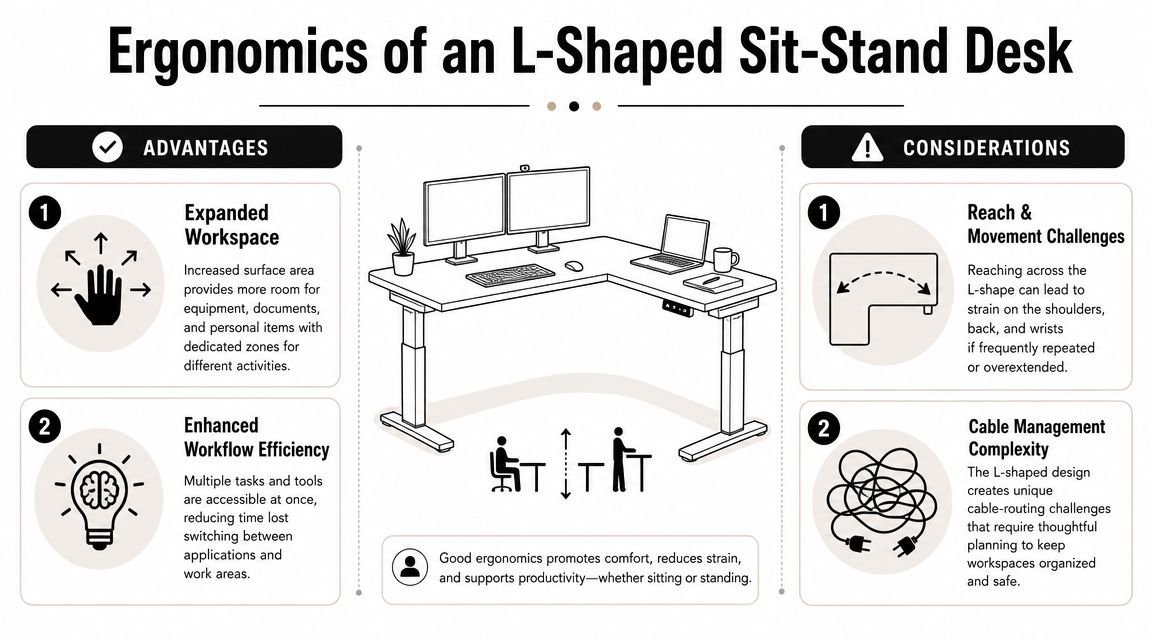
A facilities team usually notices the same problem after installation. The corner sit-stand desk fits the floor plan, but the user ends up twisted toward the back angle, reaching too far for daily tools, and treating one wing like storage instead of workspace.
That is not a desk failure. It is a layout failure inside the workstation.
Set posture first, then assign the surface
An L-shaped workstation gives users more usable area, but only if the primary tasks stay inside the shortest, most natural reach zone. The keyboard, mouse, and main display should anchor the position. The extra wing should support adjacent work, not pull the body off center.
In office projects, I set the seated position first because that is where bad habits usually start. Feet flat, elbows near 90 degrees, shoulders relaxed, screen at a height that avoids neck extension. Then I check the standing position and save both presets if the base supports memory settings.
For teams refreshing the whole workstation, chair selection still matters as much as the desk. A useful outside reference is this guide to ergonomic home office chairs, especially for understanding how seat support and arm adjustment affect desk fit.
Keep the main work off the back corner
The deepest part of the L looks like the visual center of the desk, so users often place the main monitor there. That setup creates rotation through the neck and torso, especially in shared offices where workers switch between typing, calls, and side conversations.
A better arrangement follows monitor guidance from the Cornell University Ergonomics Web. Place the primary screen directly in front of the user. If two monitors are used equally, center the seam between them. If one monitor leads and the other supports, keep the primary display straight ahead and angle the second inward on the return.
The back corner still has value. It just is not the place for the item used all day.
Give each wing a job
The cleanest corner desk layouts use three zones:
- Primary wing: keyboard, mouse, main monitor, and the work performed for the longest stretch
- Secondary wing: laptop, reference documents, phone, or a second display
- Back corner: low-access items such as charging hardware, a task light, or materials used occasionally
This zoning matters even more in modular offices. Inside a cubicle or shared benching environment, users have less freedom to slide around the workstation to compensate for a poor layout. The desk has to support the body from the start.
A corner sit-stand desk should let the user pivot between tasks, not rotate through every task.
Multi-monitor layouts need a clear primary position
Corner desks often end up in admin teams, customer support areas, and operations groups because they hold more equipment without increasing aisle pressure. That benefit disappears if the user has to work diagonally across the surface.
A practical standard looks like this:
| Work pattern | Better monitor setup |
|---|---|
| Two equal-use monitors | Center the bezel seam in front of the user |
| One main, one secondary | Put the main screen directly ahead and angle the second inward |
| Laptop plus monitor | Keep the monitor in the primary zone and move the laptop to the secondary wing |
| Call-heavy station | Place the camera-facing screen in the primary position |
That approach works particularly well in denser team environments such as call center cubicles, where every workstation has to support focus, visibility, and repeatable setup standards across a row of users.
For a broader grounding in workplace ergonomics for office workstations, pair the desk specification with a setup standard. The height range gives the user adjustment. The workstation layout determines whether that adjustment improves comfort and output.
Managing Cables and Power for a Dynamic Desk
The cable plan determines whether a corner sit-stand desk works like installed furniture or behaves like temporary equipment. In a private office, a loose cord is annoying. In a cubicle run or shared workstation cluster, it becomes a maintenance problem, a cleaning problem, and sometimes a safety problem.
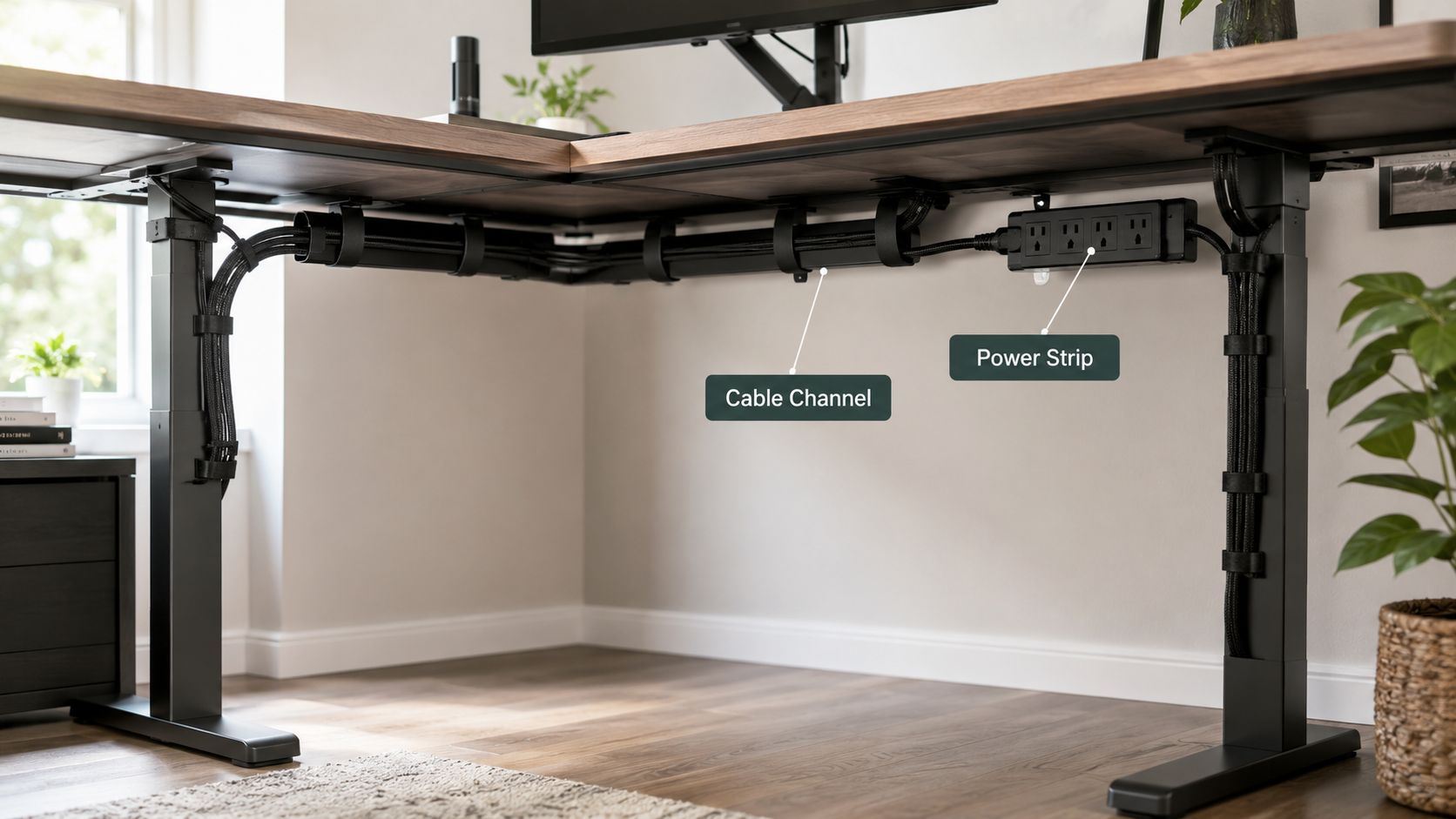
The goal is simple. Everything that rises with the desk should be supported by the desk.
Build one moving bundle
Treat the worksurface, monitors, dock, task light, and user-access power as one system. If half the cables travel with the frame and the other half stay tied to the building, the desk will eventually pull against something it should not.
A reliable setup usually includes:
- An under-desk tray for adapters and extra cable length: Keeps weight and clutter off the floor
- Clips or a raceway mounted to the frame or underside: Keeps cords inside the moving footprint
- One controlled drop to building power: Makes troubleshooting and cleaning easier
- Slack placed at the correct bend point: Lets the desk reach full height without stretching connectors
I usually tell facilities teams to test cable travel before users bring in personal devices. The workstation may look clean at seated height and still fail once the desk rises with two monitors, a dock, and a phone charger connected.
In modular offices, the cable route should match the furniture plan. If the panel system already carries power and data in a predictable path, the desk should connect to that path cleanly instead of creating a second visible route under the station.
Keep the back corner usable
The rear corner of an L-shaped desk often turns into storage for chargers, spare peripherals, and loose power bricks. Once that happens, the area stops supporting work and starts blocking access to cable paths and monitor arms.
Keep active devices on the left or right wing where users can reach them without crossing the primary work zone. Reserve the back corner for low-touch items, such as a dock mount, a small organizer, or reference material that stays put. That keeps the center of the station clear and reduces the habit of dropping extra hardware into the corner just because the surface exists.
Desk shape does not fix poor setup by itself. As noted earlier, the extra surface only helps when the team assigns each zone a job and keeps cables inside that plan.
Power planning in cubicles and glass-fronted offices
Corner sit-stand desks become more demanding once they move from a single office into a professional floorplate. A wall outlet may be enough for one manager’s office. It is rarely enough for a bank of adjustable desks inside panel systems, benching, or shared support areas.
Visibility matters too. Near glass office partitions, exposed cords read as installation mistakes because nothing hides them. In cubicles, poor routing often shows up later when cleaners, IT staff, or reconfiguration crews need access below the worksurface.
For the desk itself, an under-desk power strip mounted to the moving workstation keeps chargers and accessories with the desk instead of leaving them to hang from a wall outlet or floor strip. That approach also makes equipment swaps easier because staff can disconnect devices at the desk rather than tracing plugs back to the room perimeter.
Here’s a practical visual example of cable management thinking that translates well to adjustable desks:
Final commissioning checklist
Before turning the station over to the user, run a short commissioning check:
- Cycle the desk from lowest to highest position with every device plugged in.
- Watch the full cable path from monitor to power source, not just the visible section near the edge.
- Confirm nothing drops into chair clearance or walk paths.
- Check that outlets, controls, and charging points stay reachable at standing height.
- Make sure the station can be reset quickly after cleaning, moves, or hardware replacement.
A well-planned corner sit-stand desk should look intentional from the front, the side, and underneath. That standard matters even more in modular workplaces, where one weak cable setup tends to get copied across the rest of the floor.
If you’re planning corner sit-stand desks as part of a broader office update, Cubicle By Design can help map the desks into modular workstations, power planning, and scalable layouts that fit real building conditions, team workflows, and installation requirements.